
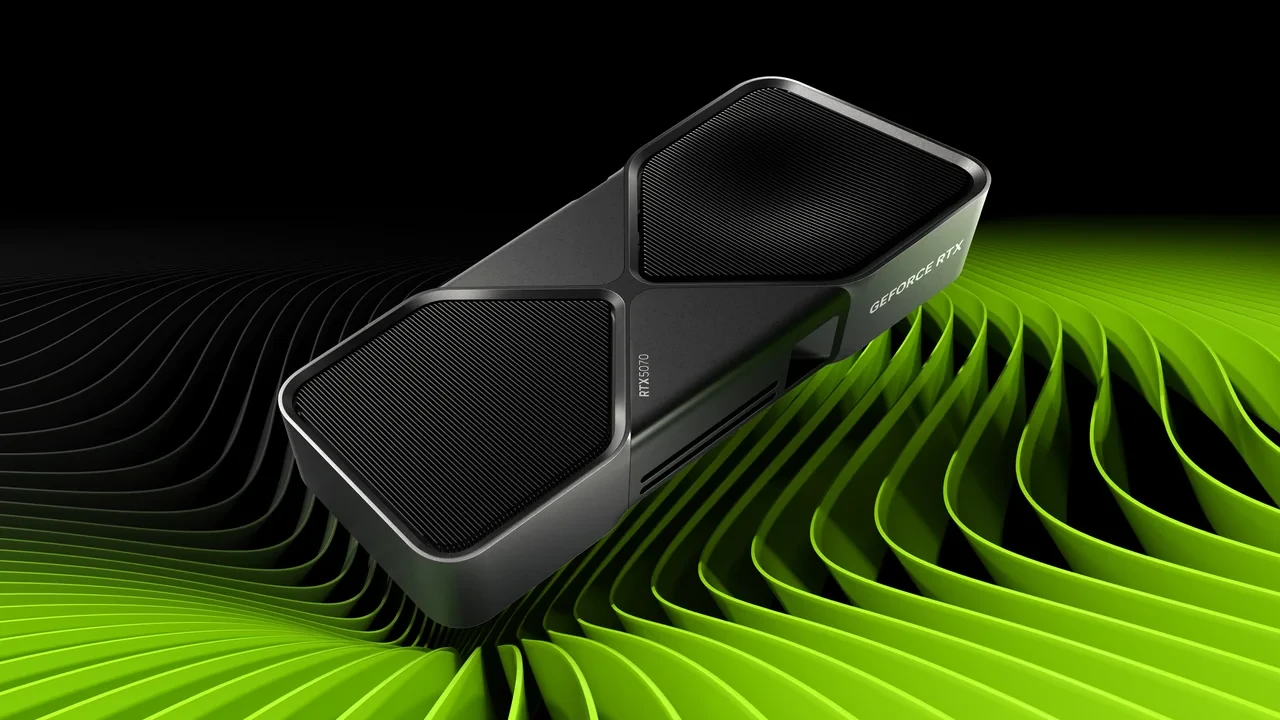
GeForce RTX 5070 DLSS 5 best settings for stable image quality and latency
Balanced is the sensible first setting for most 1440p games on a desktop GeForce RTX 5070. Use Quality when fine detail matters more than the last portion of performance, and Performance for 4K, heavy ray tracing, or a high-refresh target. Frame Generation should remain off for competitive play and pair with Reflex when enabled elsewhere.
DLSS 5 is scheduled to launch on September 3, 2026 at 21:00 PT for the GeForce RTX 50 Series. Settings, APIs, supported titles, and final defaults remain launch-data gated until then. Any profile made on an older driver should be checked again when the DLSS 5-ready driver and game update arrive.
How the RTX 5070 runs the DLSS stack
The engine renders at a lower internal resolution, Super Resolution reconstructs the final image, Ray Reconstruction can replace traditional denoisers, and Frame Generation can insert interpolated frames. The RTX 50 Series supplies the Tensor cores and optical-flow accelerator required by these paths. On the RTX 5070, those resources still share the total GPU budget with shading and ray tracing, so enabling every option is not automatically the best configuration.
At launch, the game panel gains the updated model and revised mode behavior, supported titles receive matching profiles, and the driver plus NVIDIA App provide the runtime. Names and recommended defaults may differ from the preceding DLSS 4 profile.
Confirm the GPU, driver, and game build
- Verify that the adapter name is GeForce RTX 5070. Neighboring RTX 50 products have different shader and neural budgets.
- Install the RTX 50 Series driver NVIDIA identifies as DLSS 5 ready after September 3, 2026. An older driver can expose only previous DLSS options.
- Check the game build because modern titles can change their DLSS runtime through a normal update without changing the visible game version.
- Disable third-party sharpening, capture tools, and conflicting overlays while measuring. Restore only the tools intended for normal use after setting the baseline.
If either the game or driver is old, the menu may hide DLSS 5 or present a DLSS 4 profile under a newer label. Do not force hidden controls through configuration files unless official documentation supports that override.
Select an upscaling mode by workload
| DLSS mode | Internal render vs. output | Cost on GeForce RTX 5070 | Best fit on this card |
|---|---|---|---|
| Quality | Highest internal resolution of the four | Lower upscaling cost, higher shading cost | 1080p output and 1440p output with moderate ray tracing |
| Balanced | Mid internal resolution | Balanced shading and upscaling load | 1440p output with heavier ray tracing or higher frame targets |
| Performance | Low internal resolution | Higher upscaling cost, lower shading cost | 4K output, very heavy ray tracing, or high-refresh targets |
| Ultra Performance | Lowest internal resolution | Heaviest upscaling load | Only when shading cost is the limit and image fidelity remains acceptable |
Dense foliage, particles, and transparent effects need more source detail, so they may require a higher-quality internal resolution. Heavy ray-traced reflections increase shading cost and may justify moving in the other direction. Check GPU utilization, frame time, and the moving image before changing modes.
Frame Generation, frame warp, and latency
The RTX 50 Series overview places the RTX 5070 within the family. NVIDIA’s DLSS 5 launch and compatibility page is the source to check for final release and hardware support.
Frame Generation inserts additional output between rendered frames using the optical-flow path and an updated flow model. It raises displayed FPS but also changes latency because generated and rendered frames do not carry input in the same way. Reflex should therefore be active whenever Frame Generation is enabled.
| Frame Generation state | Reflex setting | Typical effect on perceived latency | Recommended when |
|---|---|---|---|
| Off | Off or On | Baseline latency, no interpolation delay | Competitive multiplayer where each input must land on a rendered frame |
| On | On (Boost preferred) | Reduced latency compared with Frame Generation alone, still higher than the no-FG baseline | Single-player or casual multiplayer where frame rate matters more than exact frame-perfect input |
| On | Off | Latency rises noticeably | Not recommended on this GPU |
Reflex shortens the queue between input and the rendered frame. It cannot make generated frames equivalent to rendered ones, but it can keep the overall delay acceptable in the games suited to interpolation.
Keep Ray Reconstruction inside the Tensor budget
- For low or medium ray-traced reflections, keep the effect and Ray Reconstruction enabled. Neural denoising is usually more temporally stable than the legacy filter at this cost.
- For ray-traced global illumination or path tracing, treat the ray preset as the main limit and move DLSS to Balanced or Performance when needed.
- For hybrid raster and ray-traced games, retain Ray Reconstruction but test a controlled camera move because seams between reconstructed and rasterized surfaces are easier to expose.
- For games without ray tracing, Ray Reconstruction does nothing; use the budget for resolution, effects, or raw FPS instead.
The denoiser still consumes Tensor time alongside the upscaler. At Performance or Ultra Performance, its visible benefit may shrink because the reconstruction workload is already demanding.
Use the lowest sharpness that looks correct
| Sharpness range | Visual effect | Best used when |
|---|---|---|
| Low (around 0.0 to 0.3) | Soft, low-aliasing image | High-DPI displays, low internal resolution modes, scenes with heavy foliage |
| Mid (around 0.4 to 0.7) | Balanced detail and stability | Default starting point for most 1440p and 4K output configurations |
| High (around 0.8 to 1.0) | Crisp but prone to ringing | Low-resolution output on a high-resolution display, when aliasing is the dominant artifact |
Excess sharpness produces ringing and fine-detail shimmer. Film grain and chromatic aberration are applied after upscaling, so they can hide both artifacts and real detail. Check those effects at the lowest internal resolution a profile will expose.
Starting targets by output resolution
| Output resolution | Target frame rate | DLSS mode | Frame Generation | Reflex |
|---|---|---|---|---|
| 1080p | 240 Hz or higher | Quality | Optional, only if needed to reach the target | On, Boost if available |
| 1440p | 120 to 165 Hz | Balanced | On for the higher end of the range | On, Boost preferred |
| 1440p | 240 Hz | Performance | On | On, Boost preferred |
| 4K | 60 to 120 Hz | Performance | On for 120 Hz targets | On, Boost preferred |
| 4K | 240 Hz | Ultra Performance | On | On, Boost preferred |
These are starting combinations rather than performance guarantees. Select a row, measure one change at a time, and keep the title, scene, and ray-tracing preset in the record.
A complete settings pass for one game
- Begin from the developer’s recommended graphics preset or a documented equivalent. Disable unapproved post-process sharpening, motion-blur overrides, and film grain.
- Set DLSS to Quality. Enable Ray Reconstruction if the game uses ray tracing, and leave Frame Generation off.
- Use the display’s native resolution and set a cap just above its refresh rate so the limiter and panel do not compete.
- Enable Reflex, with Boost where offered, and verify its status in the game’s overlay.
- Run a fixed scene containing a fast camera move, static high-contrast edge, and particle effect. Record frame time, 1 percent low, and GPU utilization.
- If the frame is too slow, move to Balanced and repeat. If there is headroom, raise quality only when image fidelity is the actual limit.
- If Performance still misses the target, enable Frame Generation and check latency. If latency is too high, raise the DLSS quality level and accept fewer frames, or reduce ray tracing.
- Once frame rate, latency, and image quality are acceptable, adjust sharpness in small increments and save the final profile.
- Repeat after the next driver update and title update because models and per-game profiles can change.
Signals that confirm the profile is stable
- GPU utilization should stay steady through the test scene. Repeated swings between full load and idle often indicate a bad cap or a CPU bottleneck.
- The 1% low frame time should remain close to the average. A wide gap means a few frames are much slower than the rest.
- The latency overlay should match the intended target. A jump of tens of milliseconds when Frame Generation is enabled often means Reflex is inactive.
- At normal viewing distance, the image should not show persistent texture shimmer, UI ghosting, or ringing on high-contrast edges.
Diagnose symptoms one at a time
| Symptom | Likely cause | First check |
|---|---|---|
| Frame rate target met, but motion looks smeared | Frame Generation on, Reflex off or in fallback | Confirm Reflex status in the in-game overlay |
| Frame rate target met, but fine texture shimmers | DLSS mode too aggressive for the scene, or sharpness too high | Step the DLSS mode up one level, lower sharpness |
| Frame rate target missed by a small margin | Ray tracing preset too high for the chosen DLSS mode | Step the ray tracing preset down one level, keep the DLSS mode |
| Frame rate target missed by a large margin | CPU bound, not GPU bound | Check GPU utilization; if it is below the binding range, profile the CPU |
| Latency spikes that do not correlate with frame rate drops | Frame Generation on with inconsistent optical flow | Disable Frame Generation, verify latency is stable, then re-enable and check again |
Account for the rest of the renderer
- Path tracing is the largest single GPU expense and often forces a lower internal resolution. Budget it separately.
- Mesh shaders and Nanite-class geometry can reduce vertex cost and free time for shading where a title supports them.
- Per-object Variable Rate Shading should remain conservative so the upscaler receives sufficiently uniform source data.
- Hardware ray tracing is the input for Ray Reconstruction. Disabling it also removes the effect the denoiser is meant to improve.
- G-Sync and variable refresh affect how latency and dropped frames feel, although they do not change rendered latency.
A profile combining path tracing, Ultra Performance, and maximum sharpness is especially prone to poor image quality on this card.
Store display settings separately from game overrides
A reusable display profile should hold output resolution, refresh cap, Reflex state, and sharpness range. Each game override should hold its DLSS mode, ray-tracing preset, Frame Generation state, and title-specific post-processing. That separation allows one new game to be tuned without disturbing the rest of the library.
What remains unverified before launch
No verified GeForce RTX 5070 frame rate for a named DLSS 5 mode is supplied here. A figure from a third-party review or community post belongs to that source and setup, not to every RTX 5070. The mode logic, failure checks, and validation procedure remain applicable, but exact performance must come from the released driver and a documented title build.
Frequently asked questions
Does the GeForce RTX 5070 officially support DLSS 5?
Yes. It is an RTX 50 Series product. Full support is scheduled to become available with the driver and game profiles released on September 3, 2026 at 21:00 PT.
Which setting should I try first at 1440p?
Start with Balanced. Move to Quality when image quality is the limit and Performance when frame rate is the limit.
Should competitive multiplayer use Frame Generation?
Usually no. Keep Reflex on and use Quality or Balanced to hold rendered frames within the display interval.
Is Ray Reconstruction worth enabling?
Yes when ray tracing is active. It shares Tensor time with upscaling, so a heavy ray preset may require moving down one DLSS mode.
How can I confirm Reflex is active?
Check the game or NVIDIA latency overlay. A title may silently fall back to a legacy limiter when its SDK does not match.
Why does fine texture shimmer in Quality?
The internal resolution may still be too low for that scene, sharpness may be excessive, or fast motion may exceed the temporal model. Raise the mode one level, reduce sharpness, and retest.
Must the game be reinstalled for DLSS 5?
Usually not. Most modern titles update the runtime through their normal patch channel. The supporting driver still needs to be installed.
How does DLSS 5 differ from DLSS 4?
It uses an updated model, title-profile list, and driver integration. The visual and latency difference varies by game, so every existing profile needs another pass after launch.
Does DLSS 5 require an NVIDIA monitor?
No. The GPU produces frames for any connected display. G-Sync and variable refresh are separate features, though display refresh and the frame cap still affect presentation.
What mistake causes the most trouble?
Enabling Frame Generation without confirming Reflex. The FPS counter can look correct while input feels slow.
Leave a Reply